 Lectern
01 / 07 · Before class
See the day ahead
Your first class starts in a few minutes. Your schedule, readings, and deadlines are already here.
Lectern for Mac
Keep your attention in class. Lectern keeps the lecture.
Download for macOSMac app demo, adapted for this screen.
01 / 07 · Before class
Your first class starts in a few minutes. Your schedule, readings, and deadlines are already here.
How it works
A morning class, start to finish. Scroll and the laptop follows each step.
01 / 07 · Before class
Your first class starts in a few minutes. Your schedule, readings, and deadlines are already here.
02 / 07 · Record
The professor starts talking. Start a sample recording and stay with the discussion.
03 / 07 · Review
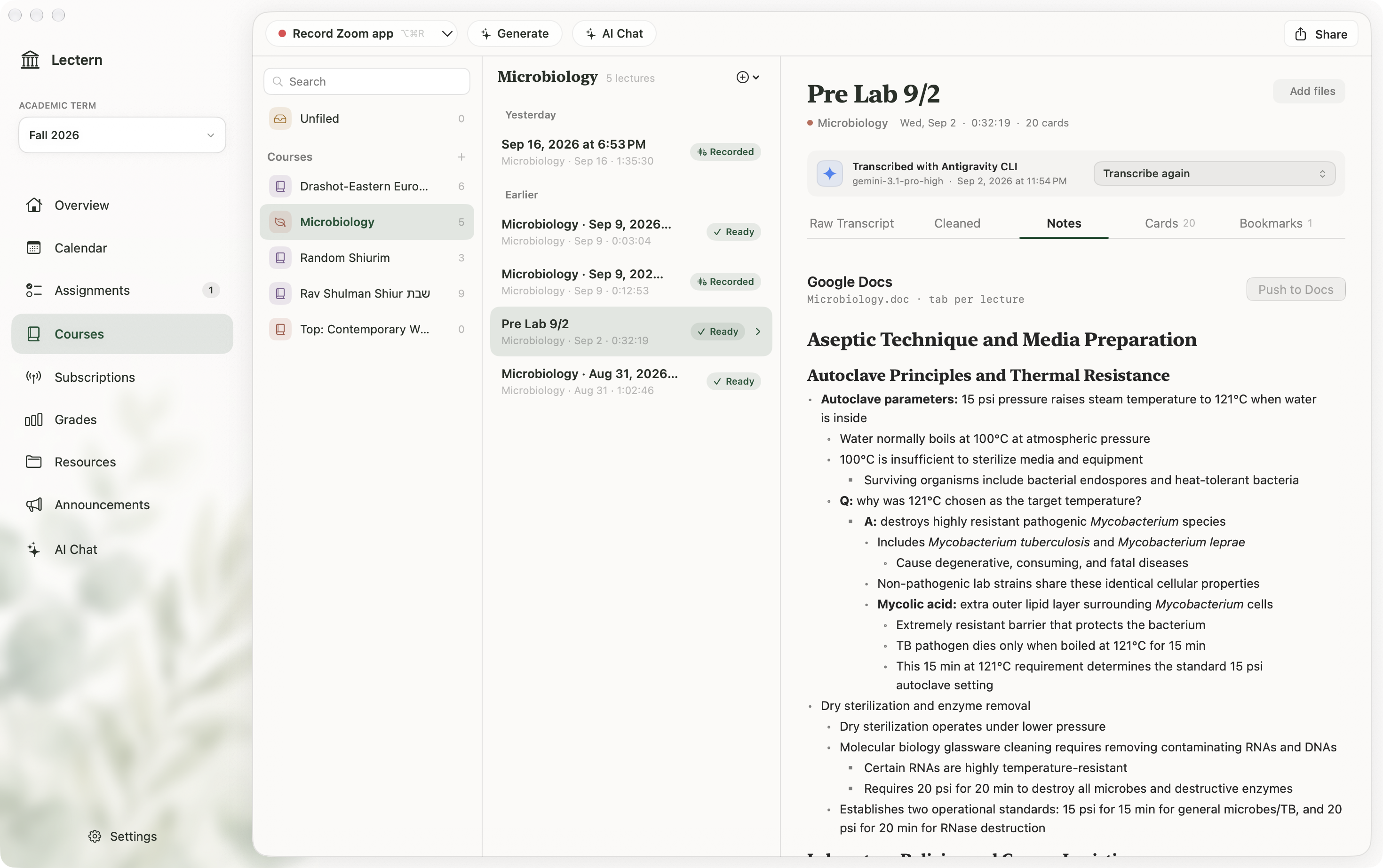
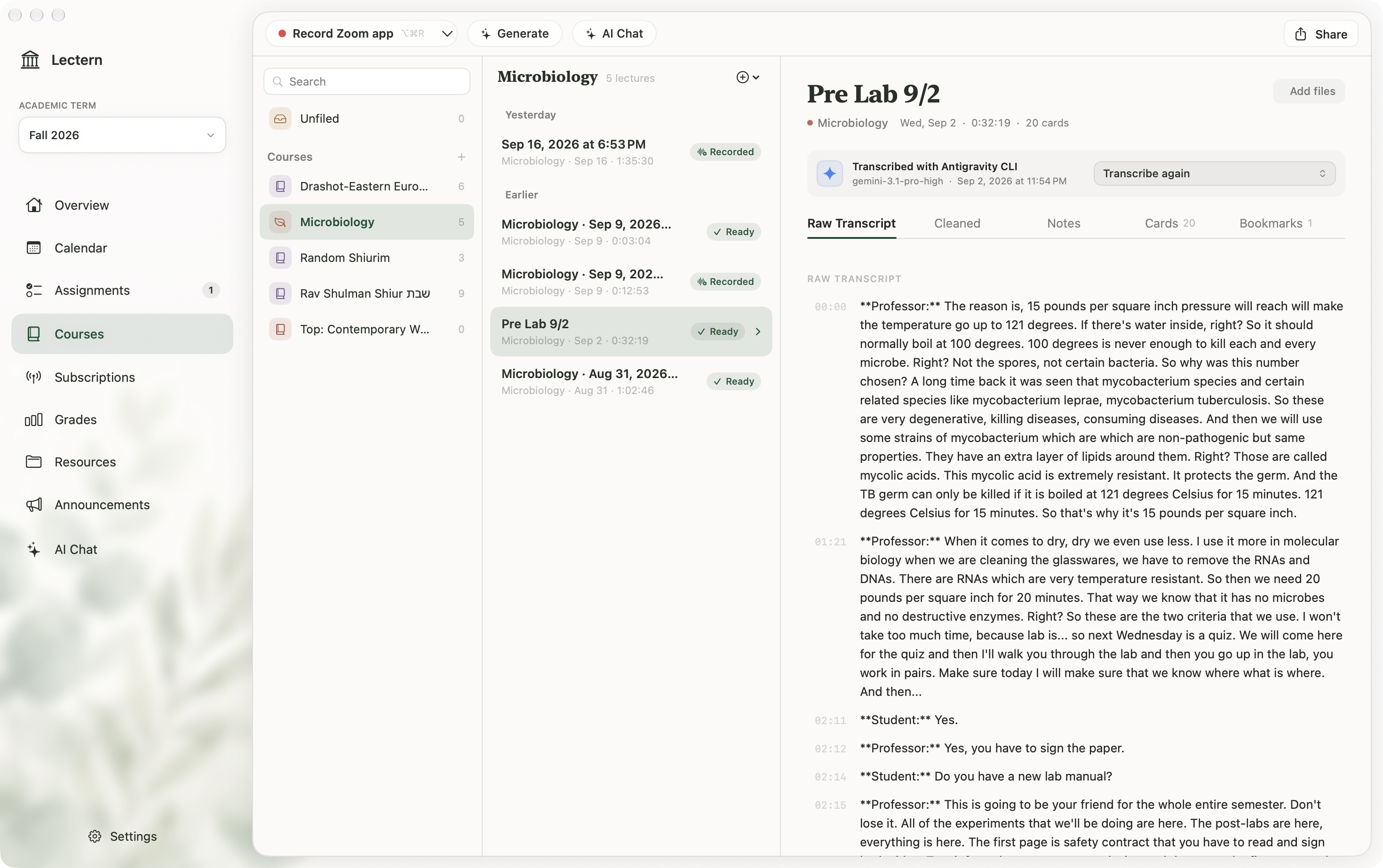
You remember the idea, but not the exact words. Find them in the transcript.
04 / 07 · Notes
Class is over. Turn the discussion into an outline you can come back to, in English or Hebrew.
05 / 07 · Cards
Tomorrow, try to recall it before you look. Reveal an answer, then move to the next card.
06 / 07 · Quiz
Did it stick? Answer a few questions and see why each answer is right.
07 / 07 · Return
The lecture stays in your library. Preview a Google Docs export, or download the sample cards.
A place for the lectures you record, the notes you return to, and the questions you still want to ask.
01 / Your semester
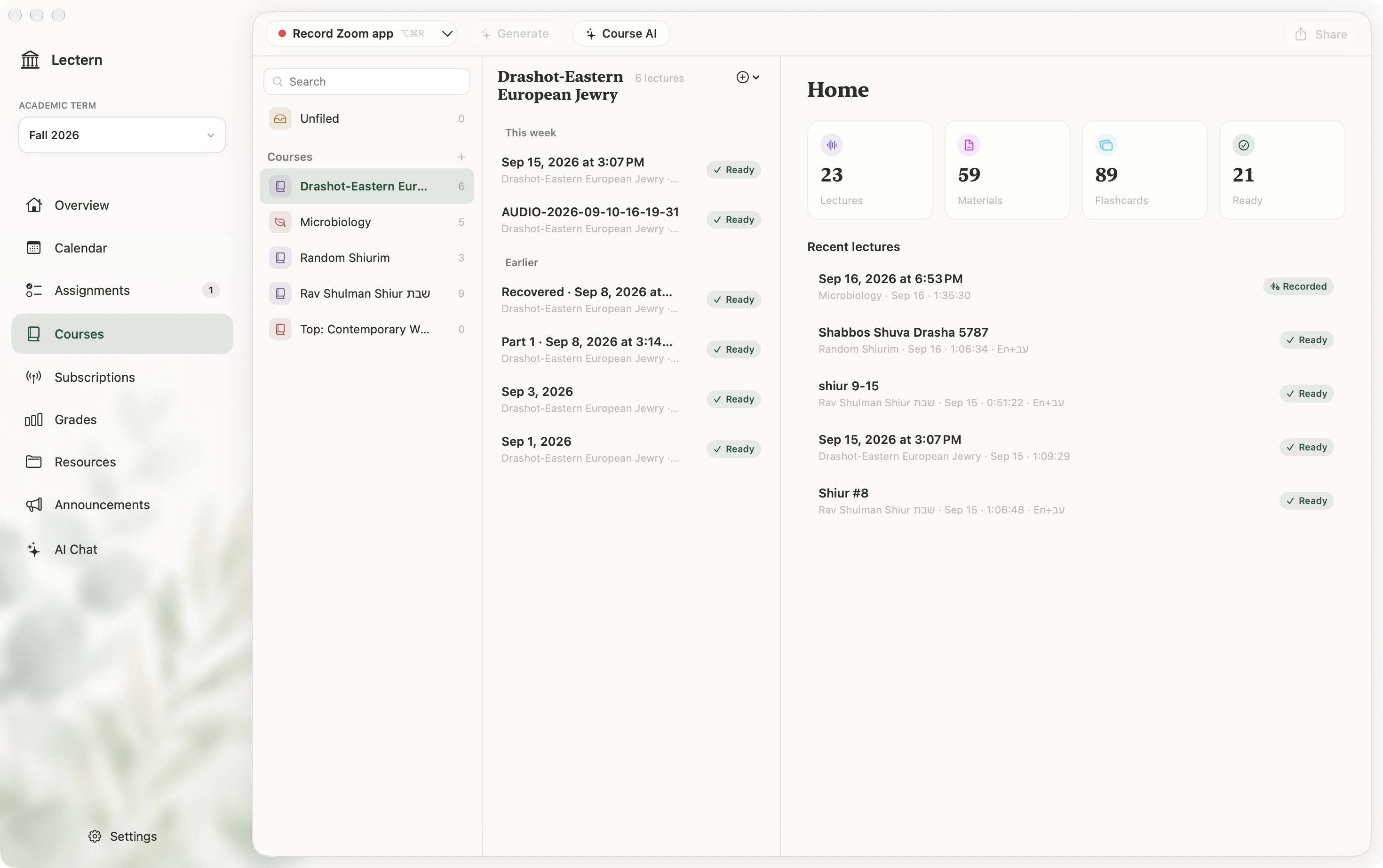
Give each course a home. Keep recordings and study materials together, so last week's lecture is right where you left it.
 Enlarge image +
Organize lectures by course and academic term. Keep a separate home for shiurim, too.
Connect Canvas for your semester details, or manage your courses directly in Lectern.
Follow YU Torah subscriptions and bring new shiurim into your library.
02 / Your lecture
Move from what was said to what you want to remember. Your transcript and notes stay with the recording.
Turn a lecture into organized notes, including mixed English–Hebrew shiurim. Review the details against the original recording.
Open AI Chat to work through questions with your course materials. Choose the AI tools you want to use.
03 / Your next study session
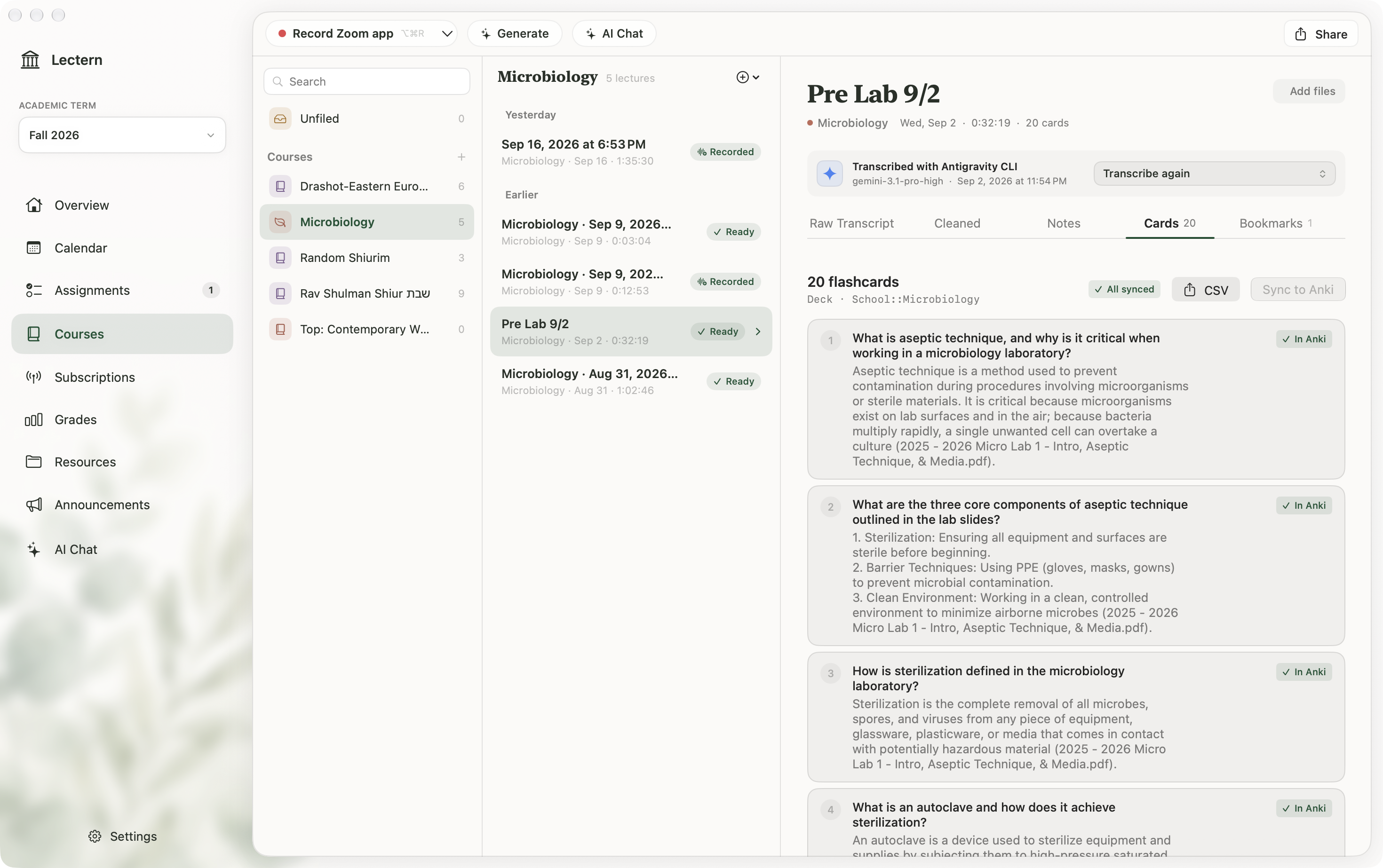
Make flashcards from the lecture, then take them into Anki. Send notes to Google Docs when you're ready to keep working.
 Enlarge image +
Your lecture is the starting point. Keep studying in the tools you already use.
Download sample Anki cards ↓The lecture, continued
A short look inside Lectern.
Real app screens. From your library to your next study session.
Choose a lecture → Make study materials → Review and edit 32 seconds · No audio
Your library, your choices
Your lecture library lives locally. You choose your transcription and AI tools, and which services to connect. Cloud features send the content needed for the task to your selected provider.
How your data is handled ↗An Apple silicon Mac running macOS 26 or later. The installation guide walks you through recording permissions and setting up your preferred transcription and AI tools.
Yes. Record your microphone or capture system audio from apps such as Zoom and your browser. macOS will ask you to grant recording permission.
Yes. Lectern supports English lectures and mixed English–Hebrew shiurim, with notes shaped for each. Review generated text against the recording, especially names and source references.
No. Both are optional. You can organize your courses and keep your lecture library in Lectern without connecting either service.
Lectern is free and open source. The transcription and AI providers you configure may have their own charges or subscription requirements.
We'll keep the lecture.
Download for Mac macOS 26+ · Apple siliconFirst time here? Start with the installation guide.